
How to merge bank statements safely (without uploading them)
By MomoPDF · · 3 min read
Renting a flat or applying for a loan often means sending three to six months of bank statements, usually as one file. Statements hold your account numbers, balances and spending, so it’s worth being careful about where you process them.
Why “where” matters
Many free PDF websites upload your files to their servers to do the work. MomoPDF does the work in your browser instead: your statements are read and combined on your own device and are never sent to us or anyone else.
Steps
- Download each monthly statement from your bank’s website or app as a PDF.
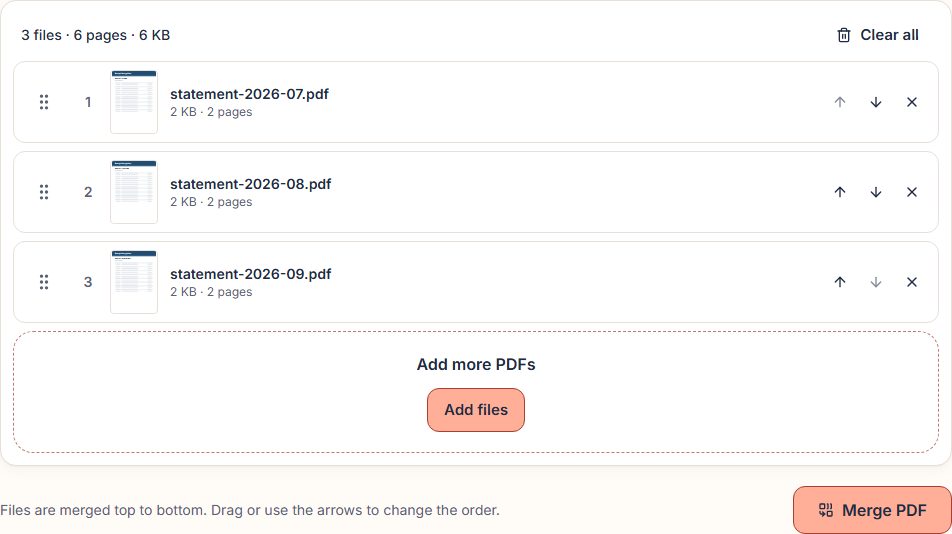
- Open Merge PDF and select all the statements.
- Put them in date order, oldest first unless you were asked otherwise. Each file shows its page count and first page to help.
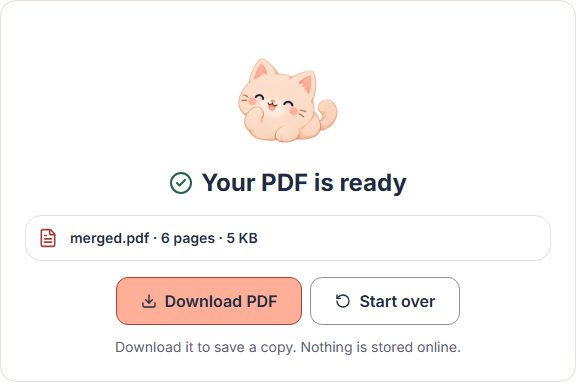
- Select Merge PDF, then Download PDF.
Only need some pages, such as the summary page of each month? Use Split PDF to pick those pages first, then merge the results.
If your bank protects its statements
- Statements that open normally but have restrictions (for example, “no editing”): if the bank allows pages to be combined, MomoPDF merges them and the result keeps the same restrictions. You’ll see a note when this applies.
- Statements that ban changes: MomoPDF respects that and shows a message. Ask your bank for an unrestricted copy, or send the files separately.
- Statements that need a password to open: MomoPDF can’t open these yet. If it’s your statement and you know the password, see how to remove a password from a PDF you own.
Before you send
- Open the merged file and check that every month is there, in order.
- Send it the way the landlord or lender asks, and delete extra copies you no longer need from your Downloads folder.